

Flat Rate Shipping
$9.95 flat rate shipping or free over $110

Aussie Owned
Australian family-owned & sourced

School Supplier
Supplier to over 1,000 schools Australia wide
FS Portal is our free eBook web viewer that lets you access encrypted eBooks purchased from us.
For our "print + digital" titles, find your access code card on the inside back cover of the print book. All FS Portal access codes are 14 characters.
 My Books page. My Books and click on the cover see Book Details. Click View online to open your eBook in the secure web viewer.
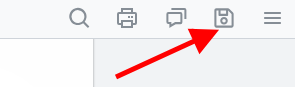
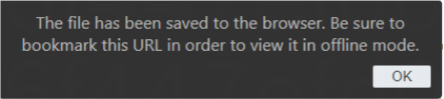
Yes, you can save an offline copy to your web browser so you can still use the secure web viewer without internet access. Note that it saves a cached copy to your browser not a separate downloadable PDF.

Yes but only for some select titles - mostly teacher books. Check the book's description on our website, or the Terms of Use on your access code card.
If your eBook allows printing, you will see a Print icon on the web viewer toolbar: 
The web viewer supports Chrome (desktop and mobile), Firefox (desktop and mobile), Safari (desktop and mobile), and Edge (desktop only).
For some users, the browser's hardware acceleration can cause font issues. This can affect Chrome and Chromium-based browsers such as Edge. Try disabling your browser's hardware acceleration.
To disable hardware acceleration on Chrome:
To disable hardware acceleration on Edge:
For help, email support@fivesenseseducation.com.au. If FS Portal shows a specific error message, please include it in your email.
$9.95 flat rate shipping or free over $110
Australian family-owned & sourced
Supplier to over 1,000 schools Australia wide